

Thunder Optics and Unknown Labs have collaborated to bring you…
ThunderView, an advanced spectrometry software platform. ThunderView integrates Unknown Network material identification for seamless data management and analytics and incorporates specialized laser drivers to precisely control laser operation. This partnership combines Thunder Optics’ expertise in spectrometry hardware with Unknown Labs’ strengths in automation and network solutions, delivering a powerful, user-friendly tool for enhanced spectral analysis.
THUNDERVIEW
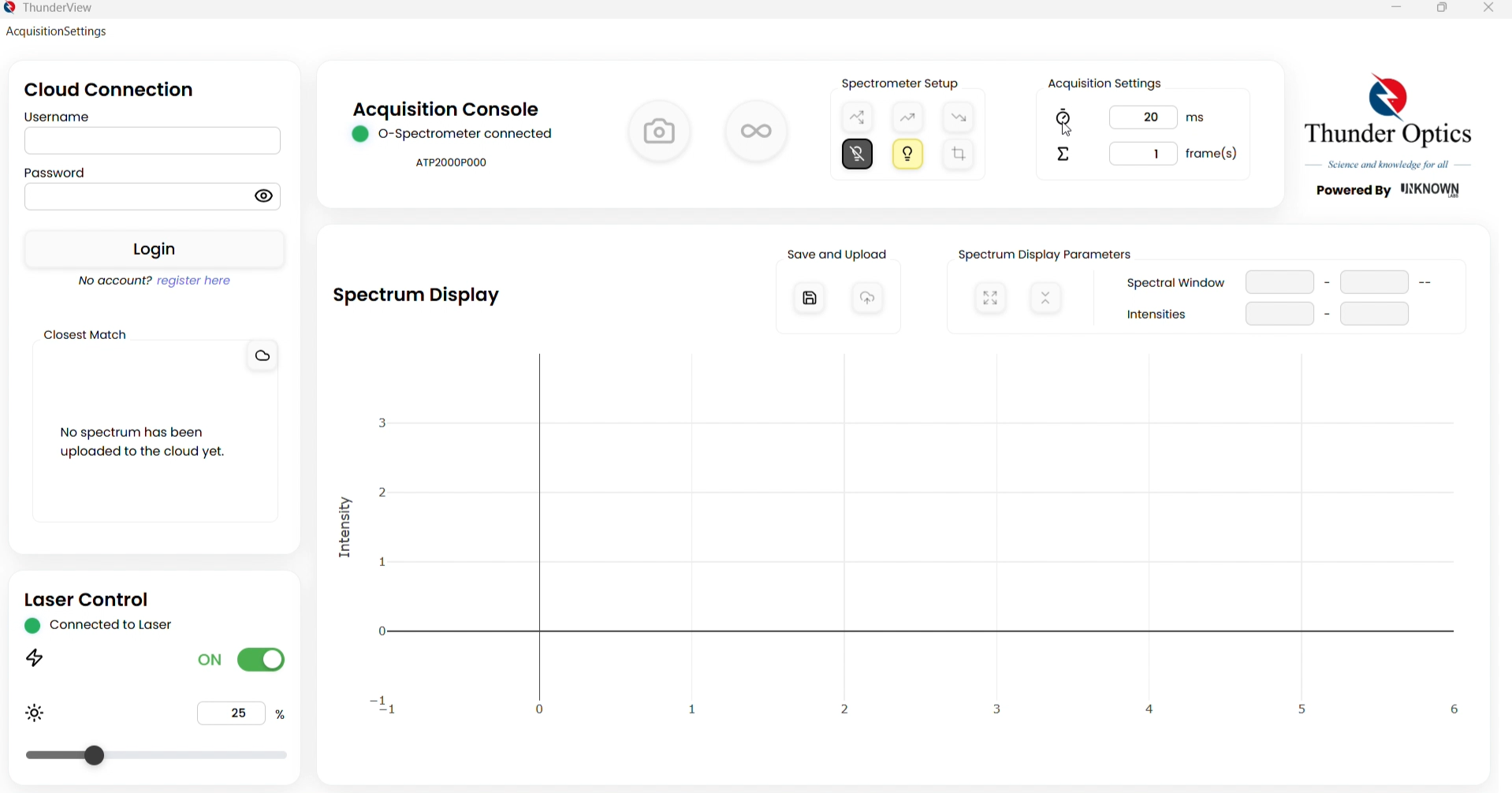
This resource is to help you quickly get started. It covers the main features, key functionalities, and step-by-step instructions designed to familiarize new users with the platform efficiently. Whether you’re setting up your profile, navigating through tools, or exploring integrations. We also have included our Network material identification for enhanced experiences.
NOTE: This upgrade is only for O and OR spectrometers. Updates coming soon for M and C versions.
ThunderView Quick Start Guide
1. Install ThunderView
1.5 (Optional) OR Spectrometer Calibration
2. Adjust Laser Settings
3. Start an Acquisition
4. Adjust the Display
5. Save or Upload the Spectrum
0. Upgrading your Thunderview
We are pleased to announce an upgrade to the ThunderView software, enhancing its performance and adding new features to better support your spectrometry goals. This upgrade is available for a one-time fee for customers that already purchased the Thunder Optics hardware, providing a cost-effective way to access improved functionality and maintain cutting-edge system capabilities.
After you add to cart, be sure to check out in the top right corner of this website.

Upgraded from old versions - license activation code for a single computer.
1. Install ThunderView
Make sure your spectrometer driver is already installed on your computer.
Double-click the ThunderView setup file to start the installation wizard.
Follow the on-screen instructions.
Choose whether to install the software for your user only or for all users.
Select the installation folder or keep the default location.
When the setup is complete, close the wizard and open ThunderView.
You can find the program later using the Windows search bar.
Plug in the spectrometer and the laser controller.
ThunderView will detect them automatically. If not, contact support
The software is now ready to use.
1.5 OR Spectrometer Calibration
Only for OR Raman Spectrometers.
Only complete this step if you are using an OR spectrometer.
If you received a calibration file from Thunder Optics, load it into ThunderView.
Open Acquisition Settings in the menu bar.
Select Set Calibration File.
Choose your calibration file and confirm.
The calibration is now applied.
Note: If you do not have your calibration file, Contact:
Phone: +33 46 75 62 368
Email: info@thunderoptics.fr
Website: www.thunderoptics.fr/contacts
2. Changing Laser Settings
Works with Dark Matter Vex Laser Drivers only.
1. Make sure your laser controller is connected.
2. Go to the Laser Control section.
3. Use the on/off button to turn the laser on or off.
4. Adjust the laser intensity using either:
◦ The slider bar, or
◦ The numerical input box.
5. The laser is now ready for use.
Note: After use, Please deactivate the Laser behind the driver via push button.
For more Laser driver information, Click here.
3. Start an Acquisition
Confirm the spectrometer status shows Connected.
Set integration time and frame count.
Initialize the dark spectrum (re-do if settings change).
Adjust wavelength range; initialize white current if needed.
Select Emission mode (or the available mode).
Start a single or continuous acquisition.
4. Adjust the Display
1. Remember: the wavelength range button affects saved spectra, not the on-screen display.
2. To change the display, open Spectrum Display Parameters.
3. Click Autoscale Axis to make the spectrum fill the display.
4. Enable Normalize Spectrum if you want each new acquisition shown with normalized values.
◦ This affects only the display. Raw data stays unchanged.
5. Adjust the zoom window as needed.
◦ The zoom setting stays the same between acquisitions.
6. Fine-tune the view until it fits your needs.
5. Connecting to Unknown Network / Saving the Spectrum
1. Log in with your Unknown Network username and password.
2. Make sure your project and subset already exist in your Unknown Network workspace.
3. Click your username to view your Unknown Network folder structure if you’re unsure where to save files.
4. To save only on your computer:
◦ Click Save and enter the sample information.
◦ A text file is created with your data and the full spectrum.
◦ This file can be uploaded to the Unknown Network later as an unknown sample.
5. To save and upload to the Unknown Network at the same time:
◦ Click Save and Upload to Unknown Network .
◦ Enter the file name and choose the destination folder.
◦ If you cancel the local save, the upload will not occur.
6. After saving, the Closest Match section will update with up to five matching reference spectra.
6. UNKNOWN NETWORK ID.
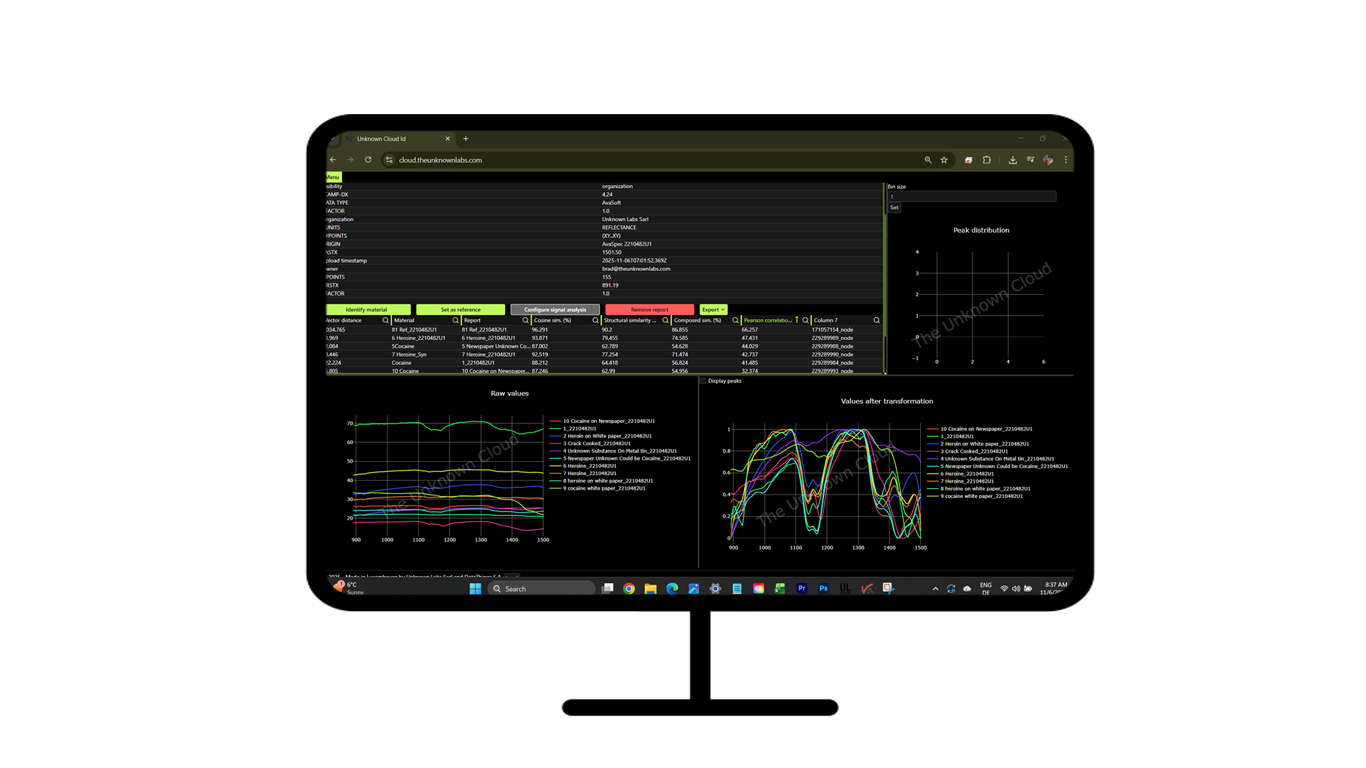
Unlock the Power of Spectral Analysis with Unknown Network ID
Unknown Network ID is your all-in-one online platform to upload, process and analyze spectral data from any supported device. Whether you're in a lab, on-site, or working remotely, our network-based system gives you instant access to advanced material identification tools. No software installation is required. Easily compare, overlay and interpret results with built-in intelligence and global accessibility.
Because your a customer of Thunder Optics, we are granting a 3 month full use of the material Identification software. For more information, Click here
-
Compare your sample with data from established online spectral libraries, including the RRUFF database.
Other Libraries include:-Narcotics
-Plastics
-Environmental Toxins
-Pharmaceutical Drugs
-
Upload your personal library and keep track of your data.
Yes, it's private and only you can access it. It’s your space. -
Access Unknown Cloud ID Lite on your Tablet, Smartphone, or Computer to manipulate your data and track changes.
-
Upload all your files at once on our platform where they will be stored and accessible.
-
Upload, view, manipulate and convert to several formats.
Fill out the form below, And we will setup your account with the Libraries you choose.
Need help? Talk to an Expert. We are here to help.
Unknown Labs S.à r.l.
Email us: Support@theunknownlabs.com